When you sign up for Earbug, there is a 3-step onboarding process. In step 1, you create your Earbug account. In step 2, you link your music streaming service to Earbug. And in step 3, you can optionally sync your contacts to Earbug.
In step 2, you normally just tap a button to link your streaming service. Earbug checks in with your streaming music app for authentication, and that's it. The link is created simply and transparently without further effort.
However, in the case of Apple Music for Android, there is a known Apple bug that prevents this from working seamlessly. If interested or concerned, you can verify that this bug exists in the Apple developer forum here: https://developer.apple.com/forums/thread/838633.
The workaround for this bug is that you will need to open your Apple Music app on your Android device and sign out of the Apple Music app. Once you have done this, return to the Earbug app and continue forward in the step 2 onboarding process. When you move ahead, you will be presented with an Apple Music screen (pictured below)
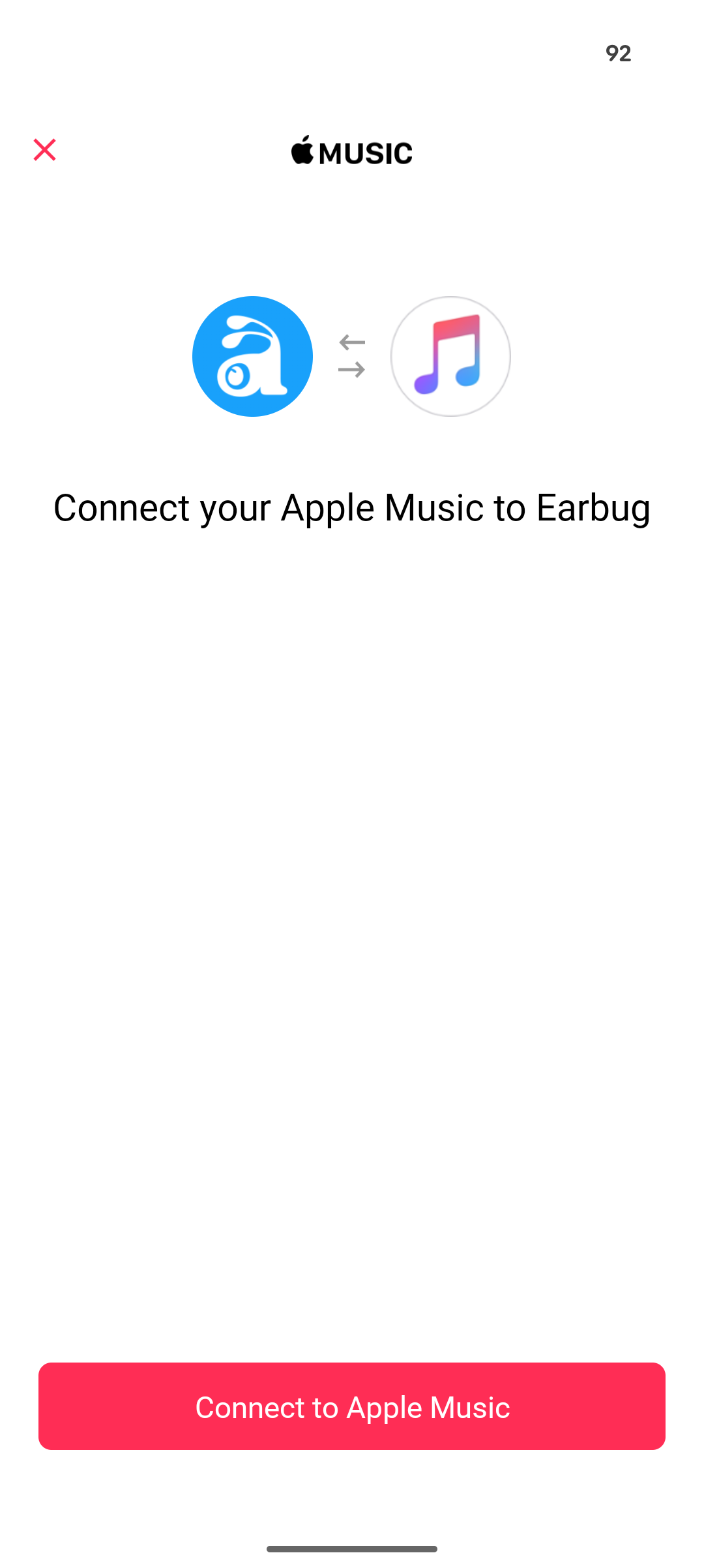
Tap the Connect to Apple Music button. You will see another Apple Music screen (pictured below).
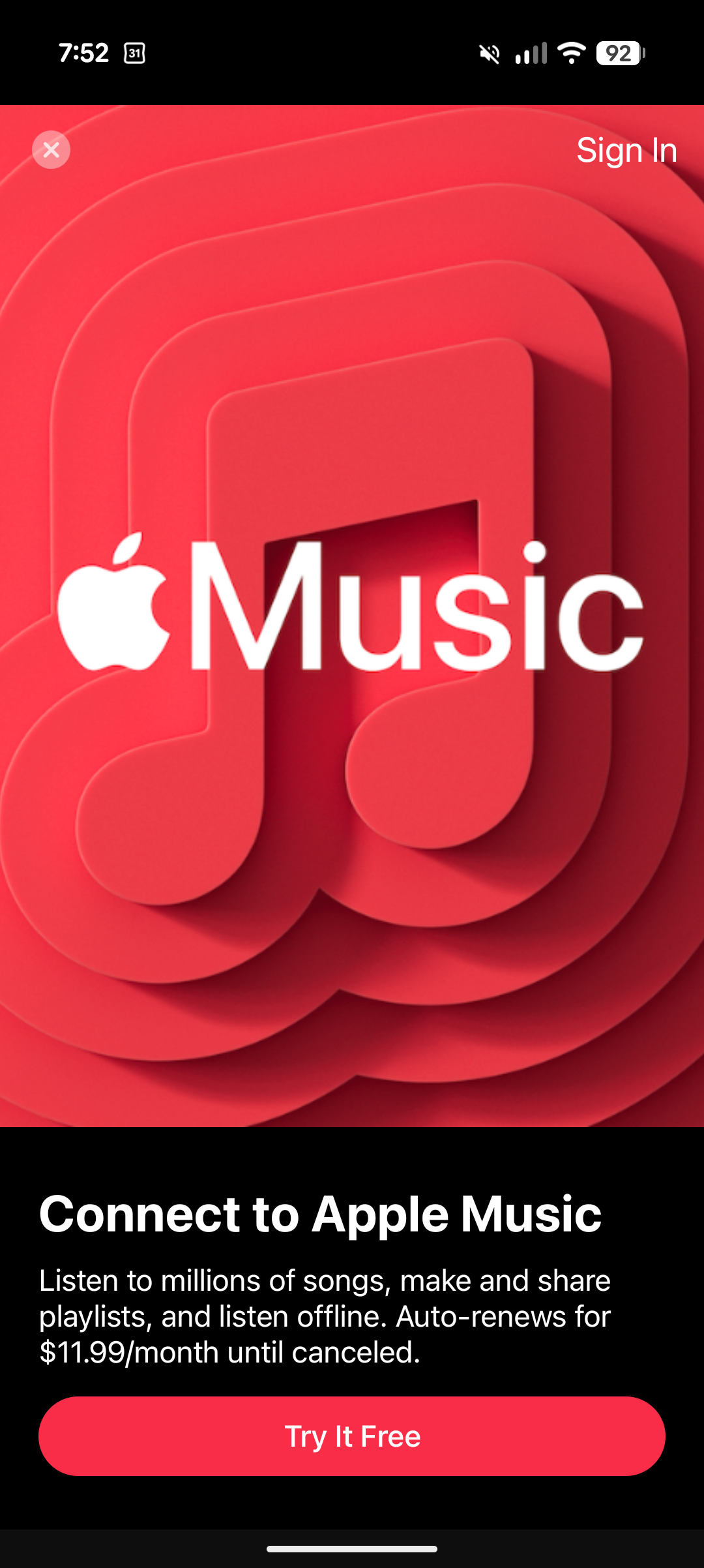
Tap the Sign In link at the top right corner of this screen. You will see the Apple Music sign in screen (pictured below).
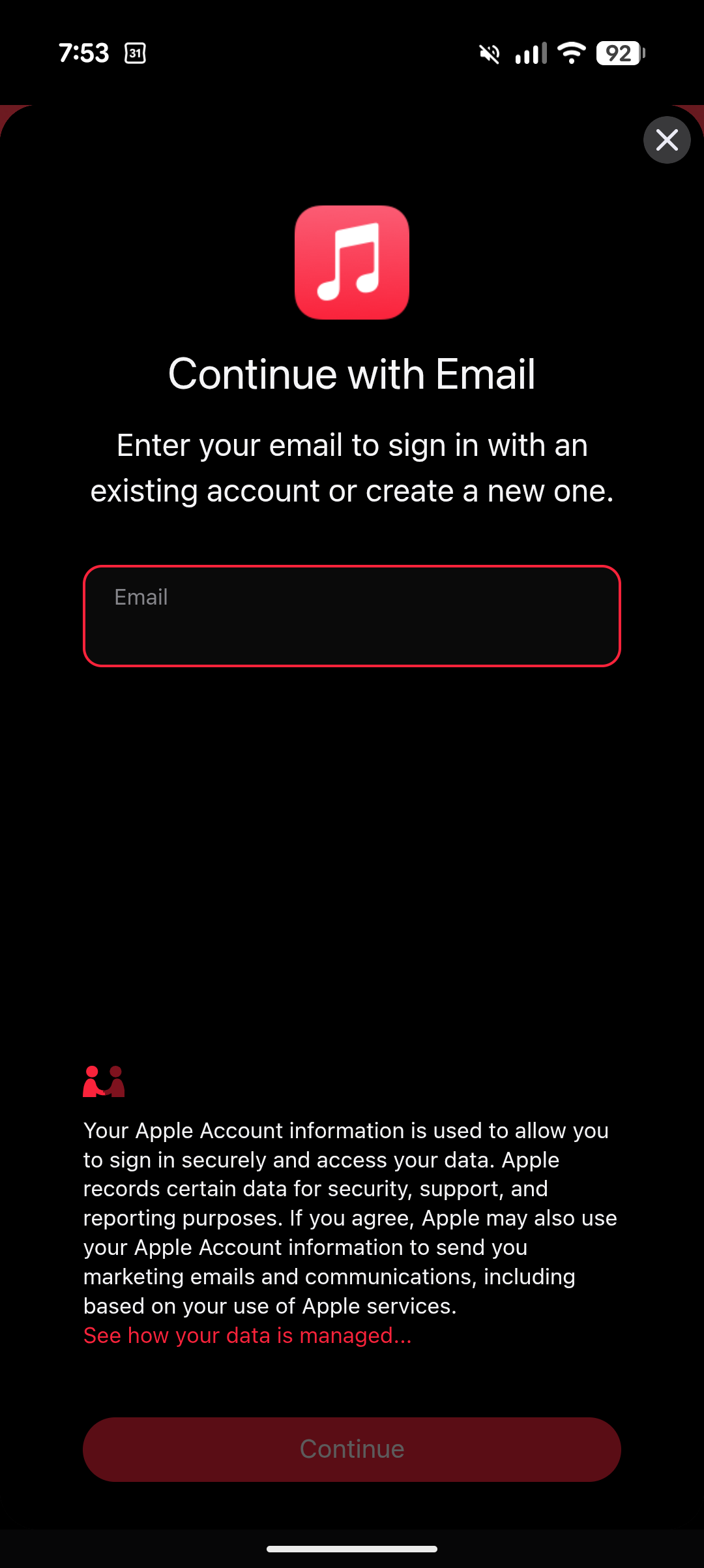
Enter the email address associated with your Apple Music account, and then tap the Continue button. You will see the next Apple Music sign in screen (pictured below).
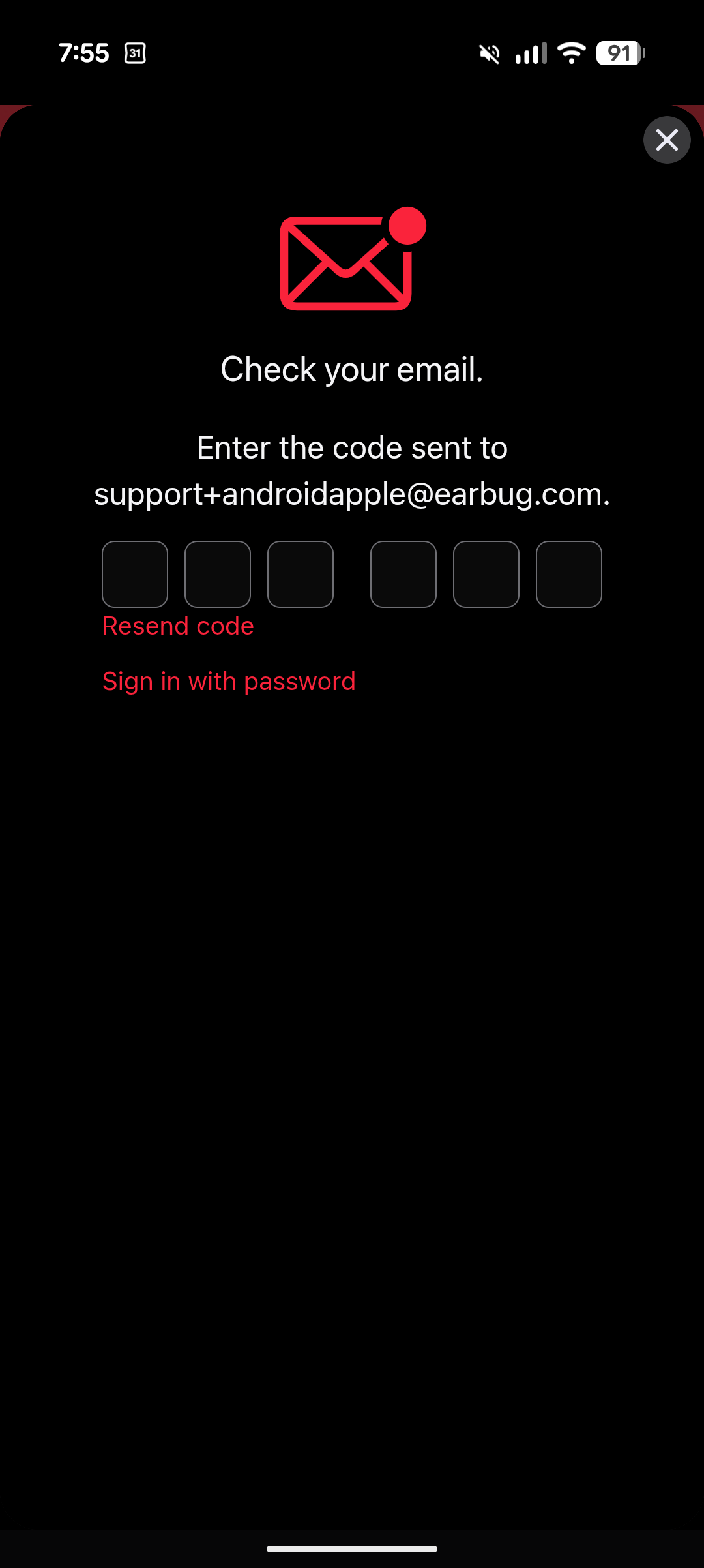
You can check your email inbox for the code from Apple Music, or you can tap the "Sign in with password" link to see a screen where you can enter your Apple Music account password (pictured below).
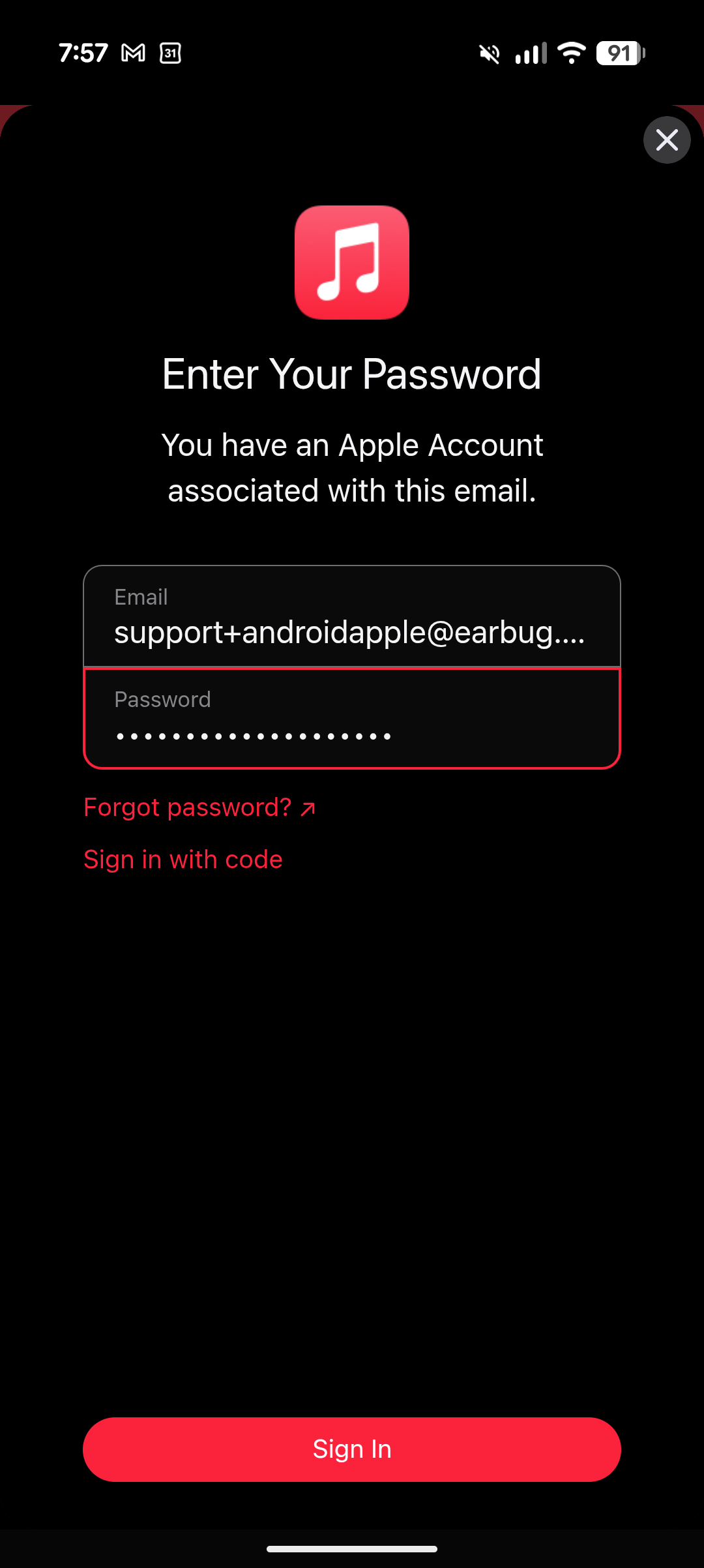
After entering the code or password, tap the Sign In button to complete signing into your Apple Music account. You will now see a permission screen (pictured below).
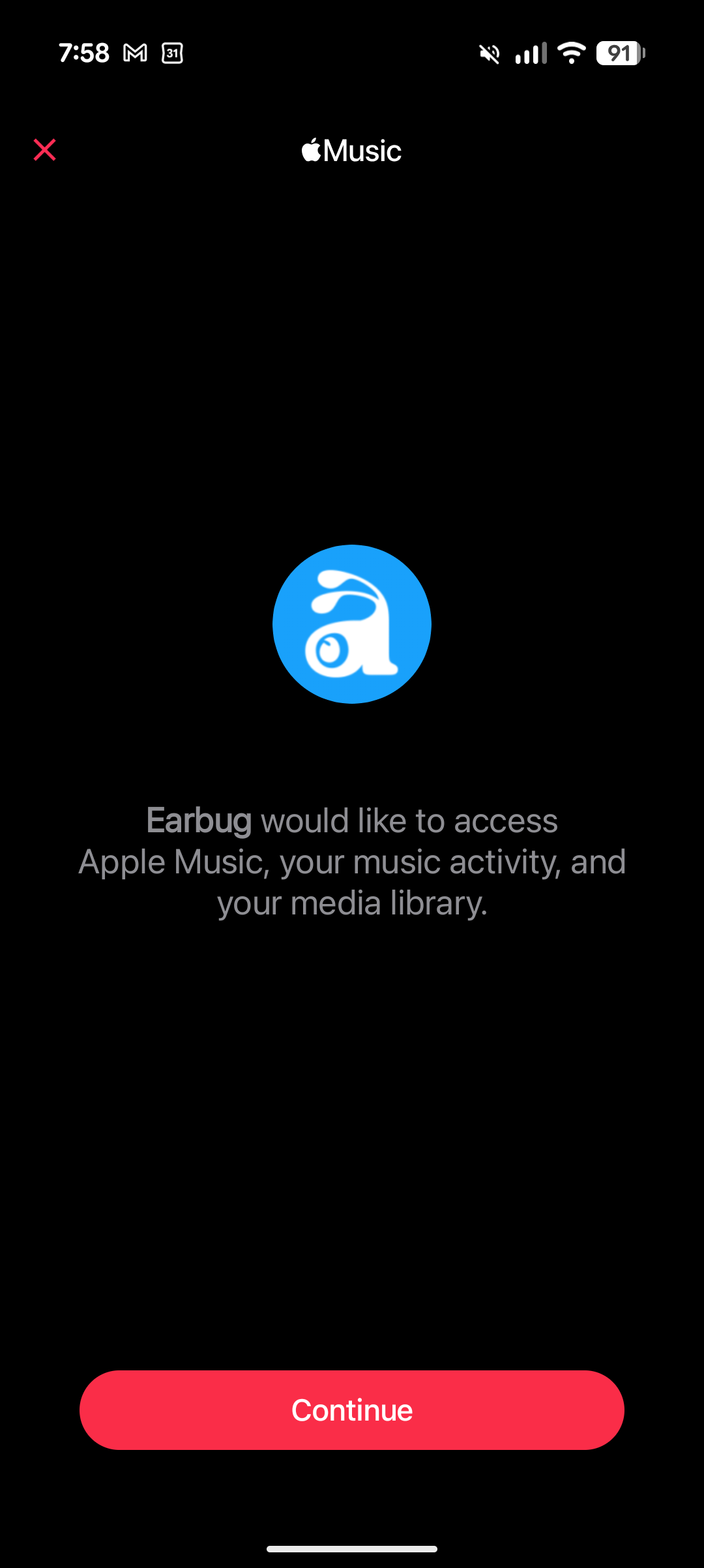
Tap the Continue button to link your Apple Music account to Earbug. As a reminder, we use this permission to: (1) play songs through Apple Music when you tell us to do this while using the Earbug app, and (2) harvest and store your Apple Music library (i.e. your playlists and playlist tracks), which makes it easier for you to use Earbug, and also lets us tailor the content you see in Earbug to things you'll find most interesting based on the musical genres, artists, and songs you like. Note that you can unlink Apple Music from Earbug anytime, either by deleting your Earbug account, or by going to your Earbug account page and tapping the Disconnect link next to Apple Music.
Finally, please note that when you sign into Apple Music using the process described above, Earbug never sees your Apple Music account email or password. You are entering that information directly into Apple Music, not into Earbug. We do not see or process that data. It's an interaction solely between you and Apple Music, so your credentials are safe and secure.
Was this article helpful?
That’s Great!
Thank you for your feedback
Sorry! We couldn't be helpful
Thank you for your feedback
Feedback sent
We appreciate your effort and will try to fix the article